Run with Options
Run with Options lets you trigger a task or production line run with non-default execution settings. Use it when you need to debug a task, recover a failed pipeline, prioritise a run, or rebuild output from scratch.
Configuring Run Options
- Right-click a task or production line. The context menu opens.
- Hover over Run. Two shortcuts appear:
- Run with Debug — click to start the run with debug mode enabled. No further configuration needed.
- Run with Options — click to open the modal and configure additional run settings.
- Select Run with Options to configure the run.
This functionality is available from:
- A production line in the production lines table or graph
- A task in the task table
- One or more tasks selected in a production line graph
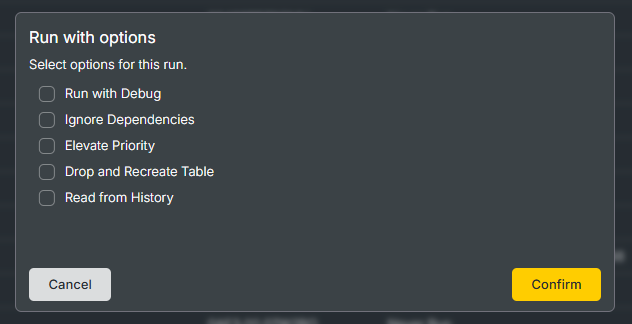
Available options
The modal shows five toggles. Any combination is allowed, and all default to off.
Run options are applied at the task level. When you run a production line with options, the selected options apply to every task in the production line.
| Option | Description | Availability |
|---|---|---|
| Run with debug | Runs the task or production line in debug mode. The orchestrator captures additional execution detail to help diagnose problems. | Databricks only |
| Ignore dependencies | Starts the run without waiting for upstream tasks to complete. Use this to re-run a single task in isolation or to recover from an upstream failure. | All activities |
| Elevate priority | Raises the run's priority in the Task Run Queue. Higher-priority tasks are picked up before lower-priority tasks subject to concurrency thresholds. | All activities |
| Drop and recreate table | Drops the output table before the run and recreates it from scratch. Use this when the table schema has changed or when you need to fully rebuild the data. | Databricks only |
| Read from history | Reads input data from the historical store rather than from the live source. Use this to reproduce a previous run or to test against a known dataset. | Databricks only |
Run with debug, Drop and recreate table, and Read from history apply only to Databricks-related activities. Selecting them has no effect on tasks that use other activity types.
Submitting the run
- Select the options you want to apply.
- Click Confirm. The modal closes and the run is queued with the selected options.
- Click Cancel to close the modal without starting a run.
The run appears in the Task Run Queue with its status set to Scheduled. From there it follows the standard execution flow — see Task Run Statuses.