Table Metadata
The Table Metadata section of a task lets you describe the Delta table the task produces — its primary key, comments, tags, constraints, and per-column documentation. The metadata is applied to the Delta table when the task runs.
Use it to keep schema documentation alongside the pipeline that produces the data, so Unity Catalog stays up to date without a separate process.
When it appears
Table Metadata appears on ingestion tasks that elevate data to a Delta table, where Schema Name and Table Name are configurable options.
Open a valid task, and scroll to the Table Metadata section.
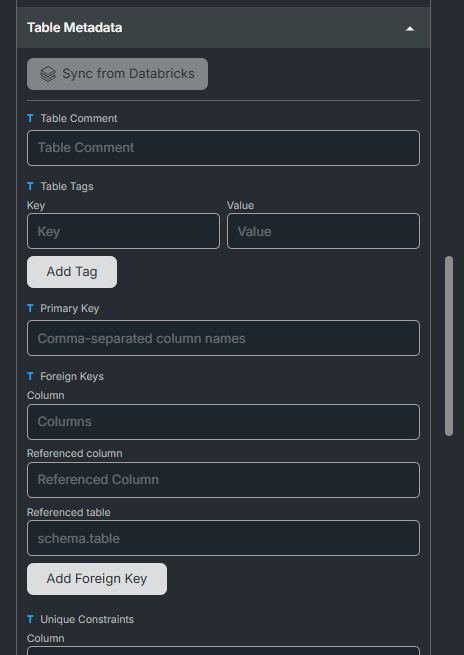
The section is organised as a stack of panels:
- Sync from Databricks — pull live metadata from an existing table
- Table Comment — free-text description of the table
- Table Tags — key/value tags applied to the table itself
- Primary Key — the columns that uniquely identify a row
- Foreign Keys — references to columns in other tables
- Unique Constraints — column sets that must be unique across rows
- Liquid Clustering Columns — columns Databricks should cluster the table on
- Column Tags/Comments — per-column documentation in a grid
You can fill any subset — every section is optional.
Sync from Databricks
If the target table already exists in Unity Catalog, Sync from Databricks pulls its current metadata into the form so you don't have to type everything by hand.
- Make sure Schema Name and Table Name are set on the task. The Sync button is disabled until both are filled.
- Click Sync from Databricks at the top of the section.
- The button shows Syncing… while it fetches. On success a green tick appears next to it and a success toast. On failure a red cross and an error toast.
How the merge works
Sync is non-destructive — values you've already entered are preserved. The merge follows these rules:
| Field | Behaviour |
|---|---|
| Single-value fields (Table Comment, Primary Key, Liquid Clustering Columns) | Filled in only if the form value is empty. Existing values are left alone. |
| List fields (Table Tags, Foreign Keys, Unique Constraints, Columns) | Combined with the incoming list. Where an item already exists locally, your values win and the incoming values are ignored. New items from Databricks are appended. |
| Column tags and comments | For columns that already exist in the form, empty Data Type and Comment fields are filled in from Databricks. Existing tags are kept; new tags from Databricks are appended. |
If you change Schema Name or Table Name between syncs, the next sync starts from a clean slate rather than merging — the form treats it as a different table.
Sync once at the start to seed the form, then edit. You can re-sync any time to pull in changes Databricks has made — your manual edits won't be overwritten.
Table-level fields
Table Comment
A free-text description of what the table holds.
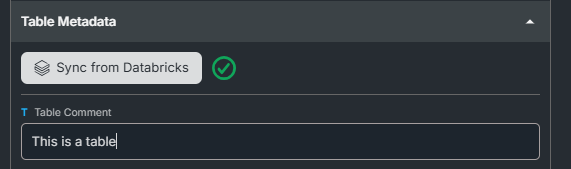
Table Tags
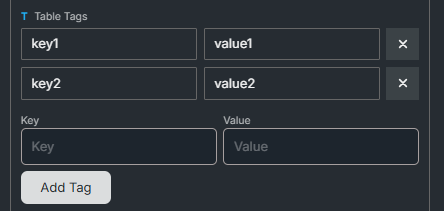
Key/value pairs attached to the table. Use them for governance metadata (environment: prod, owner: data-eng, pii: true).
To add a tag:
- Enter a Key and Value in the input fields below the saved tags list.
- Click Add Tag.
The new tag appears in the list above as Key:Value. Click the close icon on a tag to remove it.
Keys must be unique across the table's tags — adding a second tag with the same key shows a validation error.
Primary Key
A comma-separated list of column names that uniquely identify a row. For composite keys, list each column separated by commas — for example, org_id, user_id.
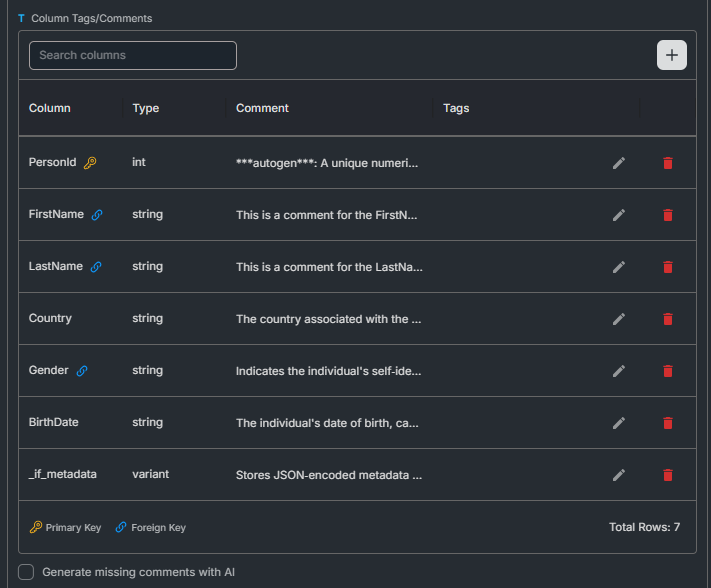
The columns named here are highlighted with a yellow key icon in the Column Tags/Comments grid.

Foreign Keys
Each foreign key declares that one or more columns in this table reference columns in another table.
To add a foreign key:
- Fill in Column(s) — the column or comma-separated columns in this table.
- Fill in Referenced table in
schema.tableformat. - Optionally fill in Referenced column(s) — if the referenced columns have different names from yours.
- Click Add Foreign Key.
The saved foreign key renders as column → schema.table (refcolumn) so you can see at a glance what points where.
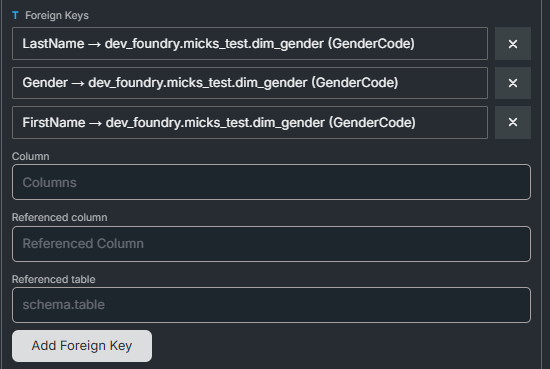
Columns appearing in a foreign key are highlighted with a blue link icon in the Column Tags/Comments grid.
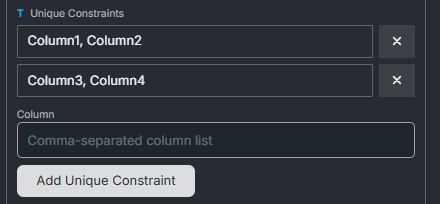
Unique Constraints
Each unique constraint is a set of columns whose combined values must be unique across the table.
- Enter a comma-separated list of column names in Columns.
- Click Add Unique Constraint.
For a single-column constraint, just enter the one column name. For a composite constraint, list every column in the set.
Liquid Clustering Columns
A comma-separated list of column names Databricks should use for liquid clustering. Setting this here applies the clustering when the table is altered.

Column Tags/Comments
The Column Tags/Comments grid lets you document every column in the table.
| Column | Description |
|---|---|
| Column | The column name. Editable until a row is saved, then locked. Highlighted with a key icon if it's part of the primary key, or a link icon if it's part of a foreign key. |
| Type | The column's data type, populated from Databricks via Sync. Not editable here — change the type in Databricks. |
| Comment | A free-text description of the column. Multi-line. |
| Tags | Key/value tags attached to the column. The first few show as chips; the rest are accessible via the edit icon. |
Adding and removing columns
- Click the + icon in the grid toolbar to add a blank row.
- Click the delete icon on a row to remove the column. Removing a column also cleans up references to it — see Deleting a column.
- Use the search box in the toolbar to filter the grid by column name.
Editing column tags
Click the edit icon next to the tag chips on a column to open the Edit tags modal.
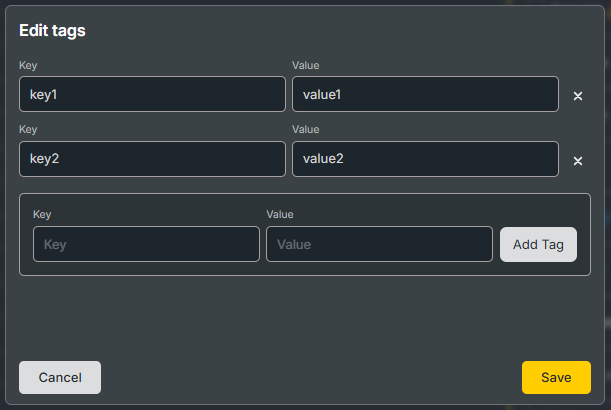
In the modal:
- Existing tags appear at the top — edit Key/Value inline, or click the delete icon to remove a tag.
- Add a new tag by entering a Key and Value in the draft area and clicking Add Tag.
- Click Save to commit the changes, or Cancel to discard.
Keys must be unique within the column's tags. Both Key and Value are required to add a tag.
Generate missing comments with AI
Below the grid is a Generate missing comments with AI checkbox. When ticked, the next time the task runs, any column with an empty Comment gets one auto-generated based on the column name, type, and surrounding context.
Columns that already have a comment are not modified.
Deleting a column
When you delete a column from the grid, all dangling references to it from elsewhere in the metadata will be stripped including:
- Primary Key — the column name is removed from the comma-separated list.
- Foreign Keys — any foreign key whose
Columnbecomes empty after removal is dropped entirely. - Unique Constraints — any constraint whose
Columnsset becomes empty is dropped. - Liquid Clustering Columns — the column name is removed from the list.
Related guides
- Selecting a Notebook
- Lakehouse Editor — view the tables you've applied this metadata to.