Task Run Statuses
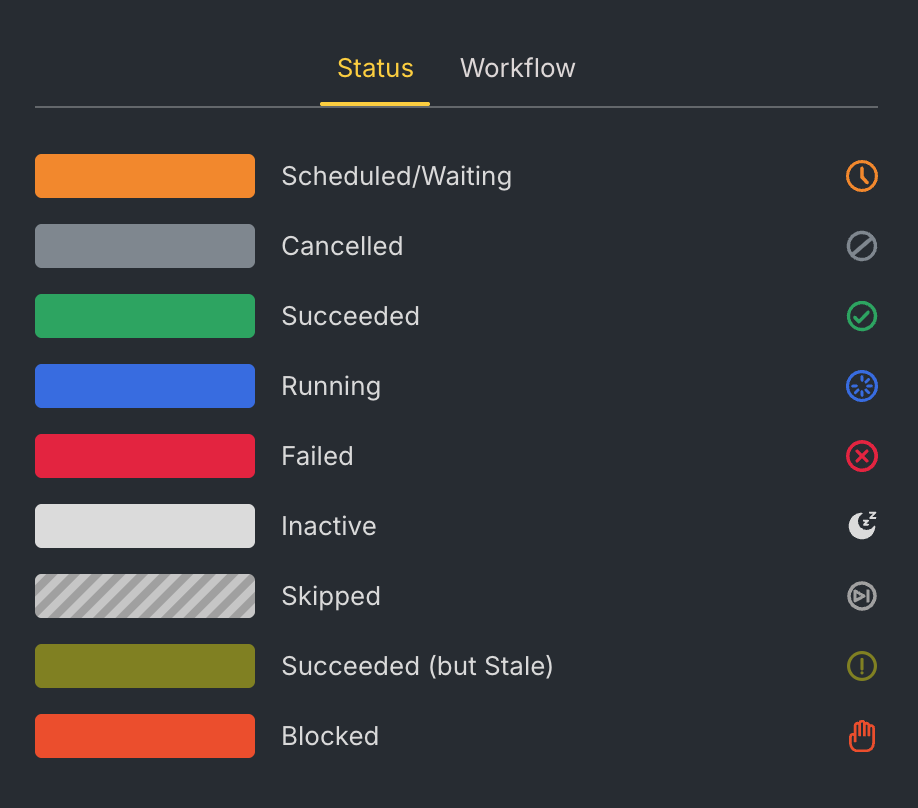
Each task has a run status that indicates its current state. Statuses appear as colour-coded nodes on the production line and task dependency graphs.
Status reference
| Status | Node colour | Description |
|---|---|---|
| Scheduled / Waiting | Orange | Scheduled: waiting for the orchestrator to pick it up. Throttle limits will affect when it starts. Waiting: waiting for an external trigger to begin processing. |
| Running | Blue | Currently running within the orchestrator. |
| Succeeded | Green | Completed successfully. |
| Succeeded (but Stale) | Dark yellow | The data for this task has reached its freshness limit and become stale. |
| Failed | Red | Failed to run when executed via the orchestrator. |
| Blocked | Orange-red | An upstream failure is blocking this task from running. |
| Cancelled | Grey | Cancelled by a user. |
| Inactive | Light grey / white | THe task has been set as inactive, or the task doesn't have an activity assigned. |
| Skipped | Grey with diagonal hatching | The orchestrator skipped this task because its workflow leg will not execute. For example, if an upstream task fails, all downstream tasks on the "On Success" leg are skipped. |
Viewing the status legend
The graph includes a built-in legend that shows all statuses and their colours. Click the legend icon at the bottom of the graph to open it.
Status details
Skipped
A task is skipped when the orchestrator determines that its workflow leg does not apply to the current run. The decision is based on the dependency condition configured on each workflow leg — Succeeded, Failed, or Completed.
Common scenarios:
- Task B depends on Task A with a Succeeded condition. Task A fails → Task B is skipped.
- Task B depends on Task A with a Failed condition. Task A succeeds → Task B is skipped.
Skipped is expected behaviour, not an error. No action is required.
Tasks with a Completed condition are never skipped — they run regardless of whether the upstream task succeeded or failed.
Blocked
A task is blocked when an upstream failure prevents it from running. The task itself has no issue — it simply cannot start because a dependency did not complete successfully.
How Blocked differs from other statuses:
- Failed — the task ran and produced an error.
- Skipped — the task was intentionally not run because its workflow condition did not match.
- Blocked — the task should have run, but an upstream failure prevents it.
Blocked status cascades. If Task A fails, Task B (which depends on A) is blocked, and Task C (which depends on B) is also blocked — even though B never ran.
To resolve a blocked task, find the first Failed task in the chain, fix the underlying issue, and retry the run.
Look for the first Failed task in the dependency chain — that is the root cause. Everything downstream is a consequence.
Stale
A task is marked Succeeded (but Stale) when its output exceeds the configured freshness threshold.
Freshness tracking works as follows:
- Configure a freshness threshold (in hours) on a task.
- After the task succeeds, the clock starts.
- Once the elapsed time exceeds the threshold, the status changes from Succeeded to Succeeded (but Stale).
Stale is a signal, not an error — it means the data has not been refreshed within the expected window. To resolve it, re-run the task. If a task repeatedly goes stale, review the production line schedule frequency.
Freshness tracking is optional. Only enable it on tasks where data currency matters.