Selecting a Notebook
When configuring the Run Databricks Notebook task, use the notebook picker to point the task at an existing notebook or create a new one from a template.
Opening the picker
In the task configuration, on a notebook path field (for example, Notebook Path or Additional Assets):
- Click Add Existing to select a notebook that already exists in your Databricks workspace.
- Click Add New to create a new notebook from a template and save it to a location you choose.
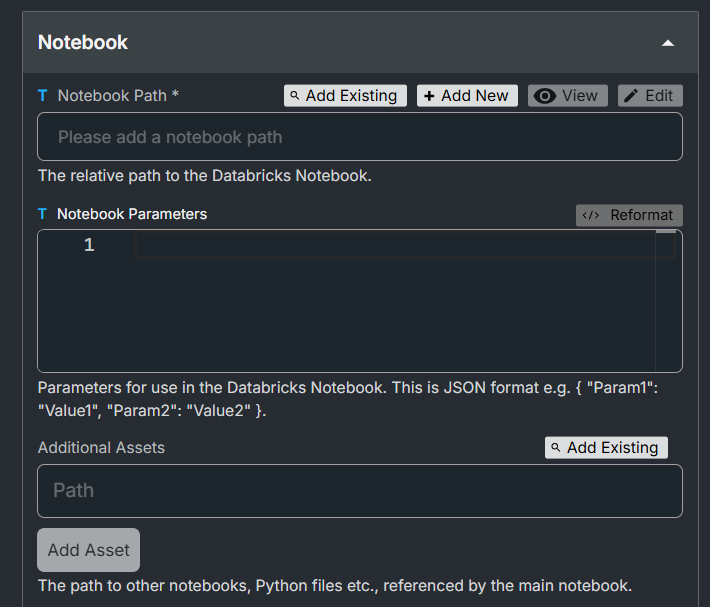
Both buttons open the notebook picker, which shows a tree view of your Databricks workspace.
Tree structure
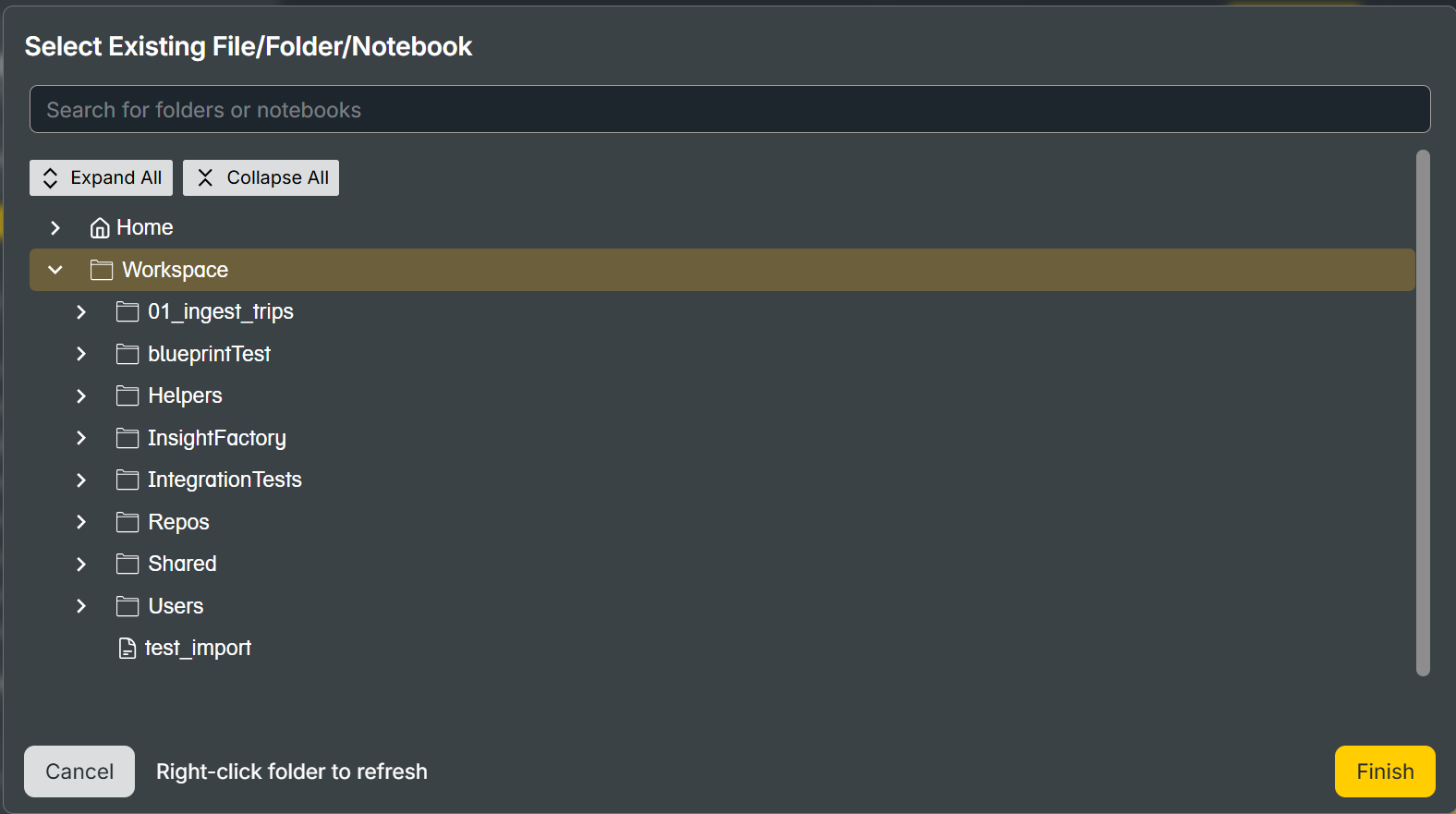
The picker shows two top-level entries:
| Entry | Contents |
|---|---|
| Home | Your personal Databricks folder (/Users/your-email@example.com). Expand to see your own notebooks and folders. |
| Workspace | The root of the Databricks workspace (/). Expand to navigate to shared folders, repos, or other users' folders. |
Each entry contains:
- Folders — expand to load their contents.
- Repos — Git-backed folders. Expand to see notebooks and files inside.
- Notebooks — selectable items that the task can run.
- Files — non-notebook assets stored in the workspace.
Folders load their children on demand — click the expand arrow to fetch the contents of a folder for the first time.
If a folder looks empty after you expand it, right-click the folder and choose Refresh Current Folder. After the first refresh, the folder loads its children on expand like any other.
Path format
The picker stores selected paths in the standard Databricks format:
- Notebooks in your home folder are stored as
/Users/your-email@example.com/... - Notebooks in a repo are stored as
/Repos/...
Selecting an item
What you can select depends on where the picker was opened from:
| Context | Selectable items |
|---|---|
| Add Existing for a notebook path | Notebooks |
| Additional Assets | Notebooks and files (multi-select) |
| Add New — choose template | Notebook templates |
| Add New — choose save location | Folders and repos |
Click an item to select it. Selected items are highlighted. In multi-select mode, use the checkbox next to each item.
Folders are not selectable as notebook paths — clicking a folder only expands or collapses it.
Searching and expanding
- Expand All — expands every loaded folder in the tree.
- Collapse All — collapses every folder back to the top level.
- Search — filters the visible tree by name. Folders stay visible so you can still navigate to matching items below them.
Refreshing folders
If you've added or moved notebooks in Databricks, refresh the affected folder to pick up the change. Right-click a folder to open the context menu:
| Action | Effect |
|---|---|
| Refresh Current Folder | Re-fetches the immediate contents of the folder. |
| Refresh All Subfolders | Re-fetches the folder and every nested folder beneath it. |
| Expand All Subfolders | Expands the folder and every loaded folder below it. |
Refresh Home like any other folder. Workspace only supports Refresh Current Folder.
Refresh All Subfolders can take a while. Refresh the most specific folder you can.
Creating a new notebook
The Add New flow has three steps:
- Choose a template — select a notebook template to use as the starting point.
- Choose a save location — pick the folder or repo where the new notebook will be created.
- Name the notebook — enter a name for the new notebook.
The picker creates a copy of the template at the chosen location and sets the task's notebook path to the new file.