Creating Blueprints
Create blueprints from scratch or from an existing production line.
Creating from an Existing Production Line
To create a blueprint based on a production line you've already built:
- Navigate to the production line you want to use as a template
- On the sidebar, hover over the plus icon and select the Create Blueprint option
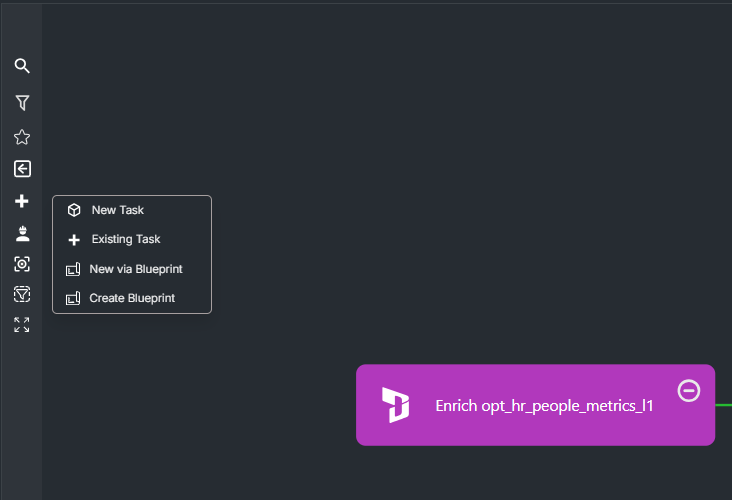
- The form will get populated with tasks, task groups and graph node groups that are part of the production line
- Adjust the template and add variables as needed
- Click Save
Creating from Scratch
- Navigate to Build > Blueprints
- Click the create button in the top right hand corner
- Fill in the blueprint form
Blueprint Form Fields
Basic Information
| Field | Description | Required |
|---|---|---|
| Code | Unique identifier. Letters, numbers, hyphens, and underscores only. Cannot be changed after creation. | Yes |
| Name | Display name shown in the blueprint list | Yes |
| Description | Longer description of what the blueprint does | No |
| Thumbnail URL | URL to an image displayed on the blueprint card | No |
Task Template
The task template defines the tasks that get created when the blueprint is applied. Each task entry includes:
| Property | Description |
|---|---|
| Code | Unique task identifier within the blueprint |
| Name | Task display name |
| Activity Code | Which activity the task runs |
| Task Group Code | Parent task group (if any) |
| Priority | Task execution priority |
| Task Config | Activity-specific configuration (JSON) |
| State Config | State-specific settings (JSON) |
| Notebook Template Path | Databricks notebook path for notebook-based tasks |
| Concurrency Threshold Code | Controls parallel execution limits |
| Upstream Dependencies | Other tasks this task depends on |
| Tags | Task-level labels |
| Active | Whether the task is active |
Task Dependencies
Tasks within a blueprint can depend on other tasks. Each dependency specifies:
- Depends Upon Task Code — the task that must run first
- Dependency Condition — when to proceed:
SUCCEEDED,COMPLETED, orFAILED
Task Group Template
Task group templates define shared configuration for groups of related tasks:
| Property | Description |
|---|---|
| Code | Unique group identifier |
| Name | Group display name |
| Description | What the group contains |
| Concurrency Threshold Code | Parallel execution limit for the group |
| Task Group Config | Shared configuration (JSON) |
Variables
Define variables to make the blueprint configurable at apply time. Each variable has:
| Property | Description |
|---|---|
| Name | Variable identifier |
| Type | Input type: string, number, boolean, enum, databricks_path, or connection |
| Type Filter | Additional filtering for the variable type |
| Title | Label shown to the user |
| Description | Help text for the variable |
| Required | Whether the user must provide a value |
| Pattern | Regex pattern for validation |
| Values | Predefined options (for enum type) |
| Default Value | Pre-filled value |
Graph Node Groups
Graph node groups control how tasks are visually grouped on the production line graph. Each group has a code, name, and a list of member tasks or nested groups.
Editing a Blueprint
- Open the blueprint from Build > Blueprints
- Select the Edit tab
- Modify any fields
- Click Save
note
The Code field cannot be changed after creation. Protected (default) blueprints cannot be edited.