Deployments
Learn how to deploy items between environments using Insight Factory deployments.
Overview
Deployments copy solutions, production lines, tasks, task groups, schedules, connections, configuration, tags, and Databricks notebooks between environments (Development, Test, Production).
All deployments require approval before execution and are fully audited.
In this guide, you'll learn how to:
- Understand the deployment workflow
- Create and plan deployments
- Manage deployment approvals
- Handle environment-specific configurations
Prerequisites
- An item, such as a production line or task, ready for deployment
- Appropriate permissions for deployment operations
Step-by-Step Guide
1. Understanding Environments
Insight Factory uses multiple environments:
| Environment | Purpose |
|---|---|
| Development | Building and testing new features |
| Test/UAT | User acceptance testing and validation |
| Production | Live operational environment |
2. Prepare for deployment
Before deploying, ensure your item:
- Has been tested in the source environment
- Uses configuration objects for environment-specific values
3. Start a deployment
To deploy items, navigate to the source (e.g., Production Lines, Tasks, Task Groups, Configuration):
- Select the item(s) you want to deploy
- Right-click and choose Deploy
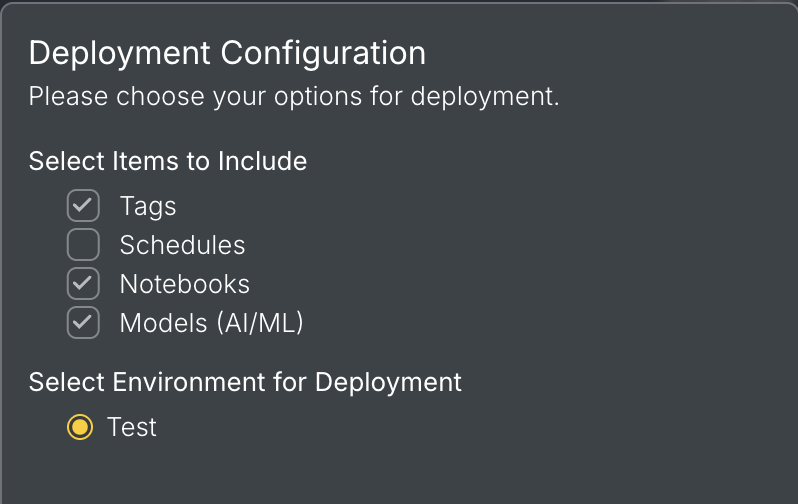
When the Deployment Configuration modal appears, select the options you want to include. For instance, schedules are not included by default, but can be enabled by checking the box. You may want to exclude notebooks if you have changes in-flight but need to update task properties.
The Prepare Deployment Plan screen appears, comparing the source environment to the target environment and displaying a summary of changes:
- New items to be added
- Items to be removed
- Changes
Review the changes to ensure they are as expected.
4. Deployment planning
The deployment plan shows:
- Items to be created (new in target)
- Items to be updated (exist in both)
- Items to be removed (only in target)
- Dependencies and related objects
- Configuration mappings
5. Submit for approval
To proceed with the deployment:
- Add a Deployment Name and Description
- Optionally add a Change Reference (such as a ticket number)
- Click Submit
The deployment request will be submitted for approval by a Release Manager.
6. Execute the deployment
Once the Release Manager has approved the request:
- Return to the Deployment screen
- Click Deploy to execute
This action will update the Deployment Package to the target environment. The package will include both Insight Factory artefacts and any associated Databricks notebooks.
7. Post-deployment verification
After deployment:
- Open the production line in the target environment
- Verify all tasks are present
- Check that connections are correctly mapped
- Run a test execution if appropriate
Deployment best practices
Do:
- Test thoroughly before deploying to production
- Use configurations for environment-specific values
- Document what's included in each deployment
- Review deployment plans carefully
Avoid:
- Deploying untested changes to production
- Deploying during peak operational hours
- Making manual changes after deployment
Key Concepts
| Term | Definition |
|---|---|
| Deployment | The process of moving production lines between environments |
| Deployment Plan | A preview of what will be created or updated |
| Approval | Sign-off required before executing a deployment |
| Environment | A separate instance of Insight Factory (Dev, Test, Prod) |