v7.1 Release Notes
Here's what's new in version 7.1.
New Features
Permissions
As requested, we have now introduced a permission system to the Insight Factory. Starting from this release, every task, production line, solution, connection, and task group that you create can be "Protected". This means that other users of the factory cannot see the properties of this resource, and cannot delete or edit it. Protected resources are identified by a grey lock icon that appears next to their name.
With the addition of this new feature comes a new page under the Administer section of the nav menu, called Permissions. Here is where you can view your pending permission requests, approve permission requests for your resources, and view or manage your permission groups.
All resources are public by default. To make a resource protected, navigate to it, and you will see a new Permissions tab at the top. Navigating to this tab will show you a button which will turn that resource protected, and also make you the manager of that resource.
You can share your protected resources with other users by either directly inviting them or creating a permission group and adding your teammates to it. When you add a user or a group to a protected resource, you can select what level of access they can have: View, which allows for reading properties; Edit, which allows editing the resource but not deleting it; or Manage, which allows deleting and also removing the protected status. For production lines or tasks, you can also set the access level to Run, which allows running the task or production line but not editing it.
To prevent broken dependencies and improve transparency, we optionally allow users to enable a "Show All" toggle on all pages that can have protected resources, that allows them to see protected resources in the table view, in case they need to know the name or code, for example. When you toggle this option, resources that you can see but do not have protected view access to will appear with yellow lock icons, whereas resources that are protected but you do have access to will appear with the same grey lock icons.
If you need access to a resource you can request it by navigating to the protected resource, where you will be prompted with an access request form.
Important behaviour to consider:
- When you protect a solution, its production lines and tasks will become protected too. The same applies to making individual production lines protected; their tasks will inherit the protected status too.
- Cloning a task or production line will also clone its permissions.
Improved Graph Search
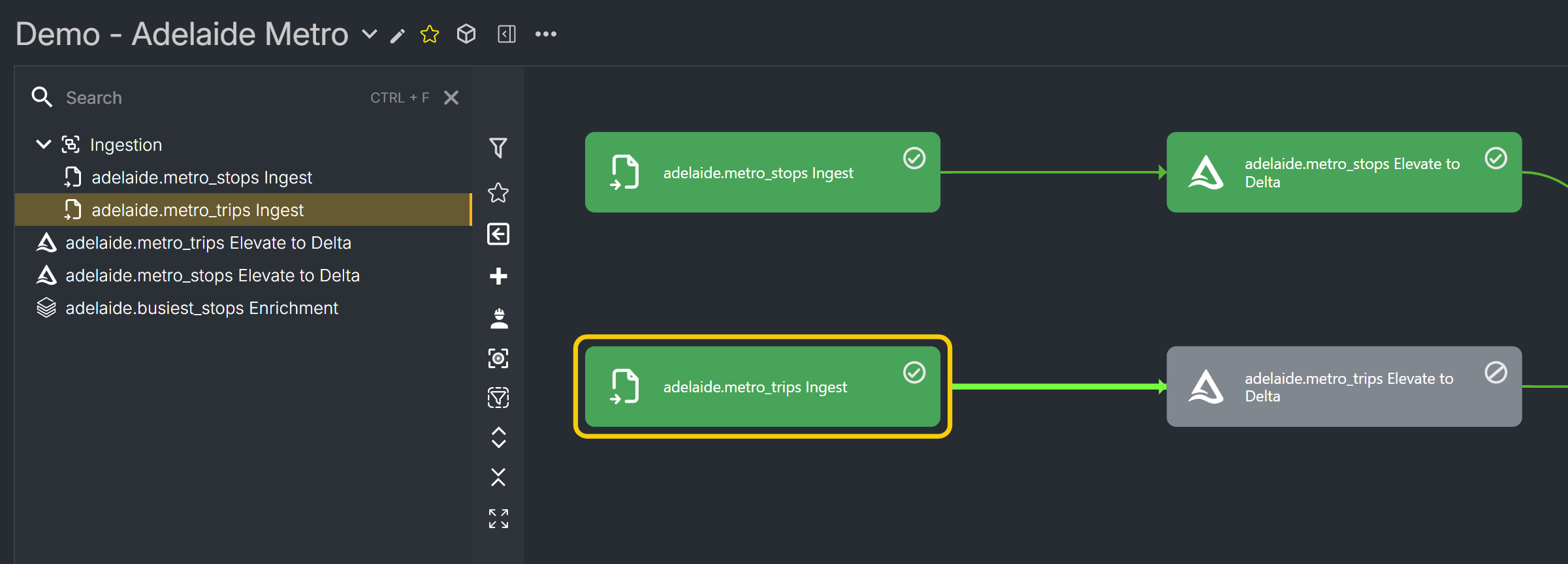
Using the new graph side panel, you can now find the task your looking for using a keyword search or simply looking through the alphabetical list. Use the Ctrl+F shortcut to open the panel and start searching.
Grouping of Tasks with Graph
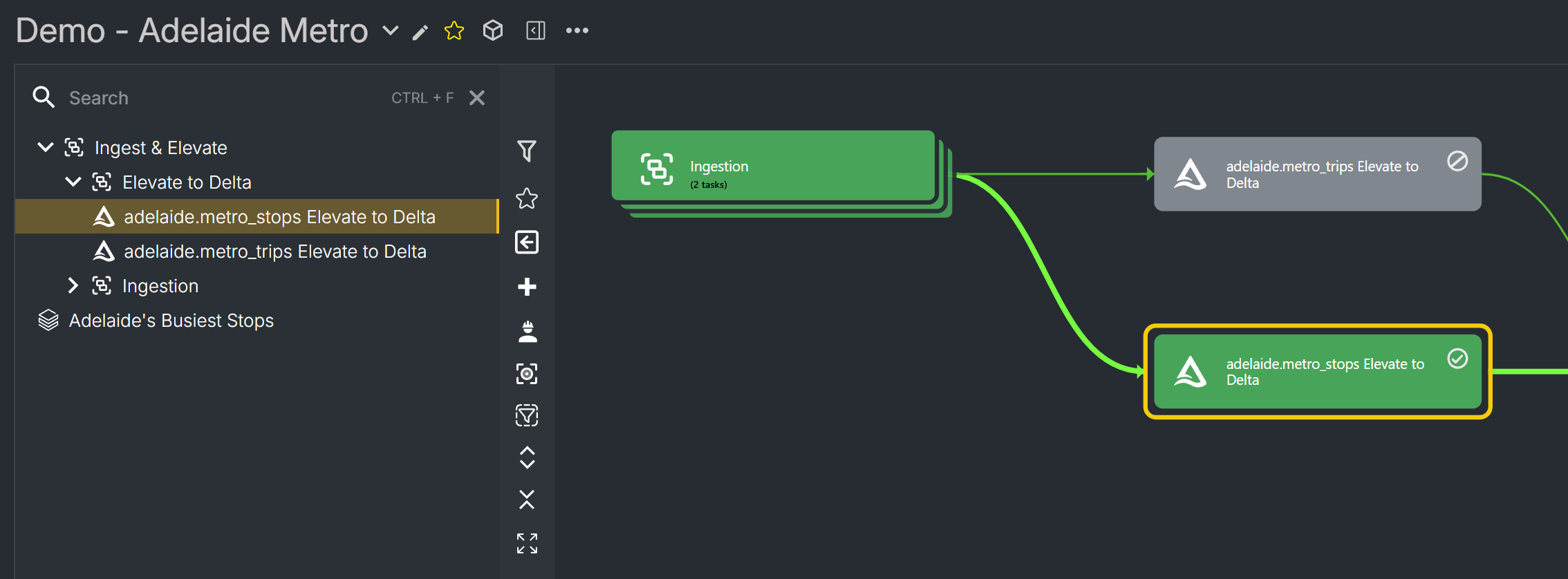
To help reduce the amount of nodes visable within a production line graph, you can now group nodes. Groups can even contain sub-groups. These node groups are visable to everyone who views the production line. Using the new side panel, groups can be collapsed or expanded as desired.
Insight Factory MCP Server (Preview)
If you have a supported client such as Claude Code, Claude Desktop, Codex, or Gemini CLI, you can now connect your client to Insight Factory's own MCP server, allowing you to interact with your tasks, production lines and Databricks notebooks all through natural language. Think of creating entire production lines with a single prompt, or documenting your solutions in seconds.
To connect, you will need to add the URL to the MCP server to your client's configuration file. This URL will be https://<your-insight-factory-base-url>/mcp. You will then add your Insight Factory bearer token as the Authorization Header. For example, to connect with Claude Desktop, you would add the following JSON to your configuration file
{
	"mcpServers": {
		"foundry_mcp": {
			"command": "npx",
			"args": [
				"mcp-remote",
				"https://<your-insight-factory-base-url>/mcp",
				"--header",
				"Authorization: Bearer ${AUTH_TOKEN}"
			],
			"env": {
				"AUTH_TOKEN": "<insert your token here>"
			}
		}
	}
}
Enhancements
- If you need to quickly retrieve your bearer token for authenticating to various tools like the Insight Factory SDK, you can now do so from the My Profile page under the Administer section of the Nav menu. Navigate to the Developer tab and click the "Copy Access Token" button to immediately copy the token to your clipboard.
- Panels such as the Task form can now be closed via the escape key
- The notebook selection modal loads much faster than before
- Databricks notebooks can now be viewed from the Task form without navigating to Databricks
- This is also supported for Additional Notebooks
- A link to the notebook in Databricks now appears next to the notebook path in the Task form
- If you are a release manager, you will see a new button on your home page that allows you to view any pending deployment requests needing your attention, allowing you to quickly navigate to them without having to go to the Deployments page
Bug Fixes
- Fixed several validation issues
New Activities
- Lakehouse to Dataverse Online
- Export Lakehouse Notebook Results to Microsoft Dataverse Online.
Decommissioned Features
Several old activities have been deprecated or removed due to the underlying Azure Data Factory linked service no longer being supported.